How to use magic search
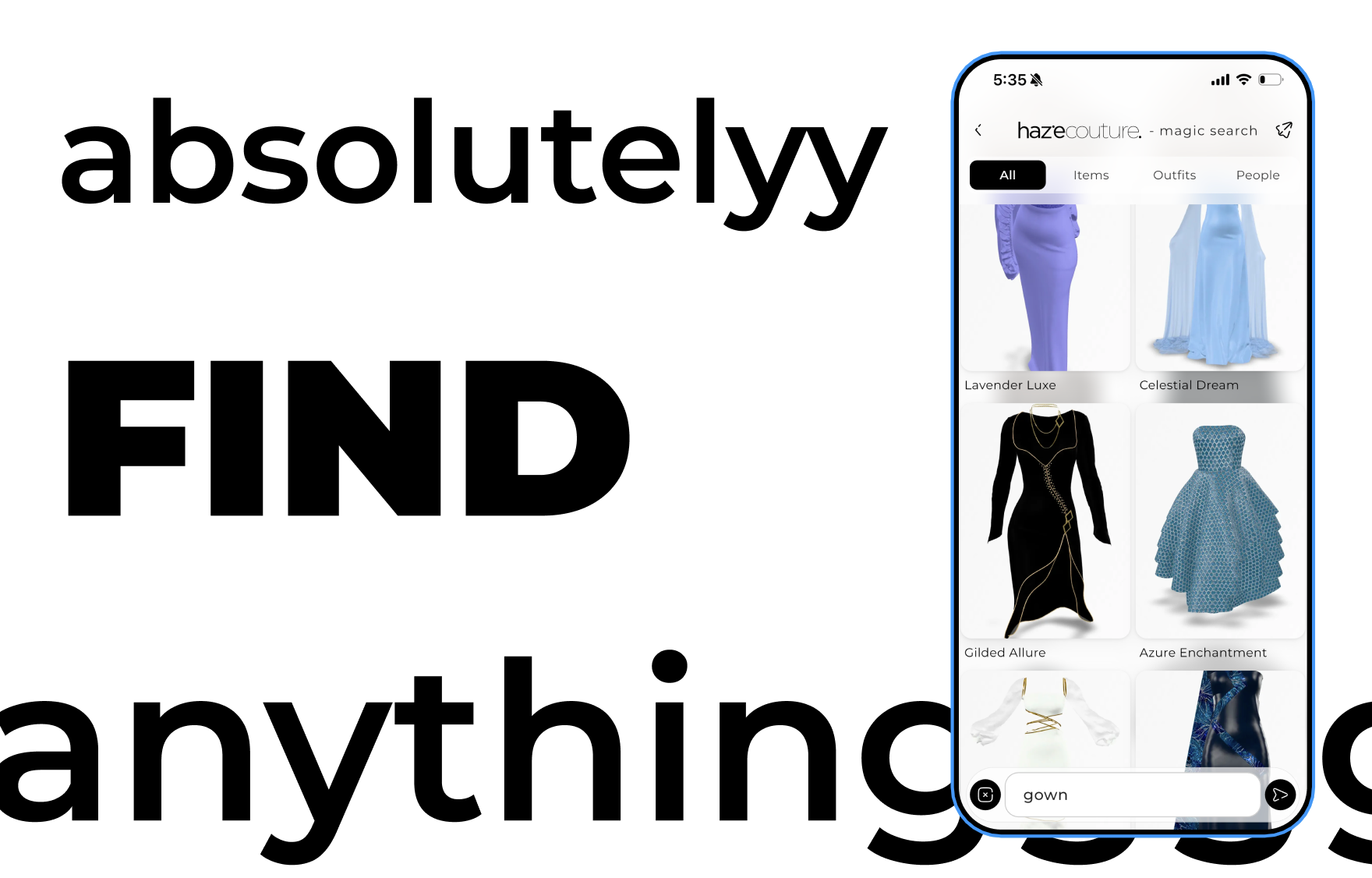
Magic Search is a search experience for finding outfits, inspos, and other content. You can type or use voice to search. Open it from the floating widget on Shop 2D or Explore.
Key features:
• Search bar for text input.
• Filter tabs (All, Outfits, Inspos) to organize results.
• Categorized results (grid or list).
• Voice interaction via Talk with Haze, offering conversational product suggestions.
• Tap a result to open Shop 3D, add to cart, or try on items.
When you see it
• Floating Magic Search widget: Small circular or pill-shaped button on Shop 2D and Explore (usually bottom-right).
• Magic Search overlay: Expands when you tap the widget. Includes search bar, filters, and results. Can toggle voice mode for Talk with Haze.
Step-by-step flow
1. Open Magic Search
• Tap the floating widget → overlay opens. The search bar may auto-expand.
2. Type a query
• Enter text and submit. Results appear in sections or grids/lists depending on filters.
3. Use filter tabs
• Tap All, Outfits, or Inspos to filter results.
4. Use voice
• Tap the microphone.
• Voice input may run a search or interact with Talk with Haze.
• Status text shows the state (e.g., “Listening…”, “Haze is speaking…”, “Tap to reconnect”).
5. Act on results
• Tap an outfit → opens Shop 3D.
• Tap an inspo → opens the inspo detail.
• Some cards may have Add to cart or Try on directly.
6. Close overlay
• Tap back or X.
• First tap may dismiss keyboard or exit voice mode; second tap closes the overlay.
Buttons & controls
Floating widget (Shop 2D / Explore)
• Tap: Opens overlay.
• Drag: Reposition widget (if supported).
Magic Search overlay
• Back / X: Handles keyboard dismissal, voice mode exit, then overlay close.
• Search bar
• Text field: Enter query. Submit to run search.
• Clear (X): Clears text and results.
• Microphone: Toggle voice search or Talk with Haze.
• Filter tabs: Tap to filter results (All, Outfits, Inspos).
• Results area
• Outfits → grid/list, tap to open Shop 3D.
• Inspos → list/grid, tap to open inspo.
• Loading → shimmer or indicator.
• Empty → message when no results found.
• Talk with Haze (overlay)
• Tap mic → speak or type.
• Haze responds with audio or product suggestions.
• Reconnect appears if the connection is lost.
Creating / editing
• You cannot create or edit search results.
• You can only run searches and act on results.
• Saved content (liked items, wardrobes) is managed in their respective features.
Deleting
• No delete for search results.
• Use Clear (X) or close overlay to remove current results.
Tips & limits
• First tap back → dismiss keyboard / exit voice.
• Second tap back → closes overlay and clears results.
• Voice → may require microphone permission; reconnect if connection drops.
• Talk with Haze → uses the same voice/product interface as the standalone Talk with Haze screen.